 NEW: This feature has just launched in v30. Not using v30 yet? Update now > NEW: This feature has just launched in v30. Not using v30 yet? Update now >
 NOTE: Not ready to update yet? Which Report > NOTE: Not ready to update yet? Which Report >
Enable the new report finder To get started, in any module with a Reports button: - Click Reports.
The first time you access a reports window, you'll be prompted to enable the new report finder:

- Click Enable Now.
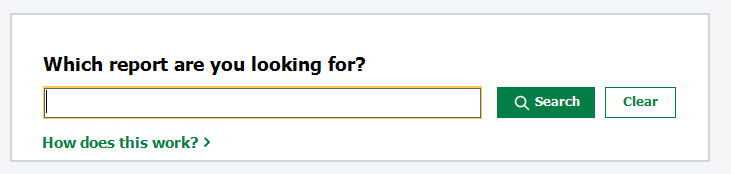
NOTE: If you have not already connected your company to your Sage account, you'll be taken through the process to do that first. Find out more > - You'll then see the new search bar:
Tips for searching How to formulate queries Be specific, but be concise. Tell us about the report you want to generate we will try and find it for you. Here's an example: Instead of: "I require a report that displays a comprehensive summary for a chosen report period, detailing the number of products bought, the cost, and the total payment, all categorised by payment type and consolidated into a single line for each supplier in an Excel export. This data will facilitate a comparative analysis of overtime versus average costs within the specified reporting timeframe." Opt for: "I am seeking a report on suppliers, broken down by product, that includes the associated costs"  TIP: Avoid asking for multiple reports in the same query. TIP: Avoid asking for multiple reports in the same query.
Why are my query results empty? The search feature will try its best to make a good recommendation. If it isn't confident in providing a recommendation, you may not see a result. If your results are empty, try adding more detail to your query or reformulating your question. I see an error message For help with errors, see this guide >
[BCB:191:UKI - #GetMoreFeedback:ECB] |